Free eBooks you @ SharingThePointAsia2011 Rocks!!!SharingThePointAsia2011
SCripts For Sharepoint Farms and Services Apps
MS STPASIA event
Paul Swider Development Strategies
Sharepoint Blank
Saturday, March 12, 2011

Friday, February 11, 2011
Sharepoint 2010 Virtual Lab
for those who can't mess around Sharepoint 2010 'cause of system requirements limitation such as 64bit, 4G/8G, etc.. check this link out:
Sharepoint Virtual Lab
whaala! enjoy!
Sharepoint Virtual Lab
whaala! enjoy!
Tuesday, August 31, 2010
To assemblies with the same name
Your IDE spit out error like "This solution contains two assemblies with the same name, or the SharePoint server already has an assembly with the specified name."
What to do?
Check to see if the webpart that you're trying to add exists in the "\Program Files\Common Files\Microsoft Shared\web server extensions\12\TEMPLATE\FEATURES" path. if so, delete it.
Uninstall that particular Assembly from c:\windows\assembly folder.
That's it! Try deploying it again and hope this time it will work :)
update: "well, actually just by doing the last part will able you to continue deploy the webpart."
What to do?
Check to see if the webpart that you're trying to add exists in the "\Program Files\Common Files\Microsoft Shared\web server extensions\12\TEMPLATE\FEATURES" path. if so, delete it.
Uninstall that particular Assembly from c:\windows\assembly folder.
That's it! Try deploying it again and hope this time it will work :)
update: "well, actually just by doing the last part will able you to continue deploy the webpart."
Wednesday, August 4, 2010
Sharepoint: customizing newform.aspx nightmare
this approach will give you trouble using the file attachment feature and will prompted you with an error message when you try to attach a file in a custom form on the Web site in Windows SharePoint Services 3.0.
“This form was customized not working with attachment"
solution can be found here: Here
or if you did not remove the original listform but just hide it you'll probably get this error:
"attachment problem can't move focus to the control because it is invincible.."
solution can be found here: here
or hotfix
update: you can resolved the issue by installing service pack 2 for the sharepoint 2007, windows sharepoint services and your sharepoint designer 2007.
and...the next problem is when you upload a file the interface doesn't change but when you close it you can find that it is already uploaded.
“This form was customized not working with attachment"
solution can be found here: Here
or if you did not remove the original listform but just hide it you'll probably get this error:
"attachment problem can't move focus to the control because it is invincible.."
solution can be found here: here
or hotfix
update: you can resolved the issue by installing service pack 2 for the sharepoint 2007, windows sharepoint services and your sharepoint designer 2007.
and...the next problem is when you upload a file the interface doesn't change but when you close it you can find that it is already uploaded.
Wednesday, July 28, 2010
Sharepoint List: Removing the Title column in form
Are you bothered with the "Title" column and can't find ways to actually remove it from the edit form? Yes you can easily remove that column from the view but inserting new record?
Here is the simple solution to your problem:
1. On your list page click -> List Setting -> Advance Setting
2. Select yes on "Allow management of content type" and click ok.
3. You'll see "Content types" option on the settings page which will have the "Item" content type.
4. Click the "item" and it will take you to a page that will able you to hide the column.
5. Clicking on the "Title" will give the form where you can hide the column completely. Click on "Hidden" under "Column settings" option in this page and hit Ok.
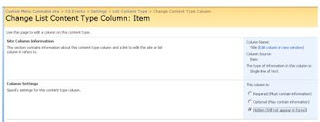
well pretty simple indeed!
Here is the simple solution to your problem:
1. On your list page click -> List Setting -> Advance Setting
2. Select yes on "Allow management of content type" and click ok.
3. You'll see "Content types" option on the settings page which will have the "Item" content type.
4. Click the "item" and it will take you to a page that will able you to hide the column.
5. Clicking on the "Title" will give the form where you can hide the column completely. Click on "Hidden" under "Column settings" option in this page and hit Ok.

well pretty simple indeed!
Thursday, January 28, 2010
Salesforce.com: Trouble deleting record type?
Do you have a hard time deleting/removing the record type assigned to a profile that has no permission on the object?
Well the trick is to build a URL almost exactly to previous profile capable of removing this record type.
Ex.
pattern:
https://.salesforce.com/setup/ui/profilerecordtypeedit.jsp?id=&tid=&pn=&retURL=%2
sample:
https://cs5.salesforce.com/setup/ui/profilerecordtypeedit.jsp?id=00f90000000gnc
M&tid=Opportunity&pn=System+Administrator&retURL=%200f90000000gncM
This solved my problem! Goodluck!
Well the trick is to build a URL almost exactly to previous profile capable of removing this record type.
Ex.
pattern:
https://
sample:
https://cs5.salesforce.com/setup/ui/profilerecordtypeedit.jsp?id=00f90000000gnc
M&tid=Opportunity&pn=System+Administrator&retURL=%200f90000000gncM
This solved my problem! Goodluck!
Wednesday, November 4, 2009
Error Logging into salesforce.com
Problem: loggin inot apexdataloader for the first time encountered "error logging into salesforce.com
Solution: Salesforce.com released a security measures for instances when a user tries to login to Salesforce.com outside of a trusted network by making API calls from an external server using the data loader or other tools.
You will need to reset your security token before following the instructions below:
This is how you reset your token:
Log into salesforce.com website using your account. click Setup -> My Personal Information -> Reset My Security Token. Then hit the "Reset Security Token" button on the resulting page, hence you will recieve an email with your new security token and instructions similar to the instruction below:
How to enter your security token:
if your password = "mypassword"
and your security token = "XXXXXXXXXX"
you must enter "mypasswordXXXXXXXXXX" in place of your password.
I hope this solution will help you resolved your problem logging into dataloader tool.
Solution: Salesforce.com released a security measures for instances when a user tries to login to Salesforce.com outside of a trusted network by making API calls from an external server using the data loader or other tools.
You will need to reset your security token before following the instructions below:
This is how you reset your token:
Log into salesforce.com website using your account. click Setup -> My Personal Information -> Reset My Security Token. Then hit the "Reset Security Token" button on the resulting page, hence you will recieve an email with your new security token and instructions similar to the instruction below:
How to enter your security token:
if your password = "mypassword"
and your security token = "XXXXXXXXXX"
you must enter "mypasswordXXXXXXXXXX" in place of your password.
I hope this solution will help you resolved your problem logging into dataloader tool.
Subscribe to:
Posts (Atom)