Wednesday, July 23, 2014

Monday, September 30, 2013
Hortonworks Sandbox for Hyper-V on Windows 8
This instructions will guide you to properly run Hortonworks Sandbox Hyper-V on windows 8.
1. First download the sandbox here make sure click the Sandbox for Hyper-V.
2. Follow the instructions here (pre-requisites also included here on how to enable Hyper-V on Windows 8)
3. When the VM host and running you will see window just like the image below:

but when using "http://192.168.56.101/ nothing happens. (display using chrome browser)

Solution: Open up your sandbox connection and change the IP using the subnet range as the Hortonworks default IP address.

Upon applying the changes you should now be able to browse the Hortonworks SandBox registration page.

I hope this instructions save you time.
Cannot Generate SSPI context
Cannot generate SSPI context. at System.Data.SqlClient.SqlInternalConnection.OnError(SqlException exception, Boolean breakConnection)
I'm always face to this problem more often so I've decided to write it down.
This scenario occurs whenever my staging servers restarted and when I'm publishing my solution.
My solution to this is just to log a user with admin privileges to the server so that it will established connection to my domain.
This fix works for me everytime.
My solution to this is just to log a user with admin privileges to the server so that it will established connection to my domain.
This fix works for me everytime.
Wednesday, October 10, 2012
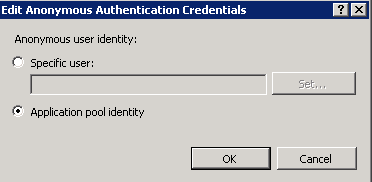
ASP Page not applying css and images
If web.config file entry below does not work:
<location path="images">
<system.web>
<authorization>
<allow users="*" />
</authorization>
</system.web>
</location>
<location path="css">
<system.web>
<authorization>
<allow users="*" />
</authorization>
</system.web>
</location>
Open up IIS manager and click authentication and set anonymous to application pool if your using Integrated Authentication.
<location path="images">
<system.web>
<authorization>
<allow users="*" />
</authorization>
</system.web>
</location>
<location path="css">
<system.web>
<authorization>
<allow users="*" />
</authorization>
</system.web>
</location>
Open up IIS manager and click authentication and set anonymous to application pool if your using Integrated Authentication.
Wednesday, September 26, 2012
Form Based Authentication DB Registration
To register a Database for Form-based Authentication in ASP.NET you can use the command line tool
aspnet_regsql.
aspnet_regsql.exe
To use the To use the tool, just run'aspnet_regsql.exe'
It should be located here:
C:\%windir%\Microsoft.NET\Framework\
mine work like this:
"C:\Windows\Microsoft.NET\Framework\v2.0.50727\aspnet_regsql.exe"
Thursday, June 21, 2012
Removing multiple spaces using recursive solution
This function will replace multiple spaces into single space.
Recursive Solution:
CREATE FUNCTION [dbo].[ufn_TrimSpaces]
(
@strDetails varchar(100)
)
RETURNS varchar(100)
AS
BEGIN
WHILE CHARINDEX(' ',@strDetails) > 0
BEGIN
SET @strDetails = REPLACE(@strDetails, ' ',' ')
END
RETURN LTRIM(RTRIM(@strDetails))
END
to test:
declare @test varchar(100)
set @test = ' This is sample text '
select dbo.ufn_TrimSpaces(@test)
Recursive Solution:
CREATE FUNCTION [dbo].[ufn_TrimSpaces]
(
@strDetails varchar(100)
)
RETURNS varchar(100)
AS
BEGIN
WHILE CHARINDEX(' ',@strDetails) > 0
BEGIN
SET @strDetails = REPLACE(@strDetails, ' ',' ')
END
RETURN LTRIM(RTRIM(@strDetails))
END
to test:
declare @test varchar(100)
set @test = ' This is sample text '
select dbo.ufn_TrimSpaces(@test)
Wednesday, June 20, 2012
Fix Restored DB backup user login account
Run the script below to fix the user account login from restored db backup.
Use
sp_change_users_login 'auto_fix' ,''
Use
sp_change_users_login 'auto_fix' ,'
Subscribe to:
Posts (Atom)